
How to Extract a Table from a Website
Easy Scraper AI6 min read
Short answer
To extract a table from a website, open the page in Chrome and start Easy Scraper AI. It detects the repeated rows, turns each column into a field and lets you untick the ones you don't need. Press Start, then copy the result or download it as CSV or JSON. Lists made of cards work the same way.
Transcript
- Here's how to extract a table or a list from a website, without writing code.
- Open the page with the table or list.
- Click the Easy Scraper AI icon to open the side panel.
- Each column of the table becomes a field.
- Untick the fields you don't want.
- If nothing is detected: click Point at one list item.
- Then click one row on the page.
- Press Start.
- Open the results window.
- Click Copy to paste the table into Google Sheets.
- Or click CSV to download a file.
- Easy Scraper AI. A no-code web scraper for Chrome.
On this page
Selecting a table with the mouse and pasting it into a spreadsheet often brings broken columns, merged cells and stray links with it. And many "tables" on the web aren't tables at all: they are grids of cards.
This guide shows how to get either kind into clean rows and columns, using real pages from Books to Scrape, a public practice site.
What you need
- Google Chrome on a computer (version 114 or later)
- The Easy Scraper AI extension
- The page with the table or list open in a tab
Steps
Step 1: Open the page and the side panel
Go to the page and click the Easy Scraper AI icon in the Chrome toolbar. The side panel opens next to the page.
Step 2: Let it find the rows
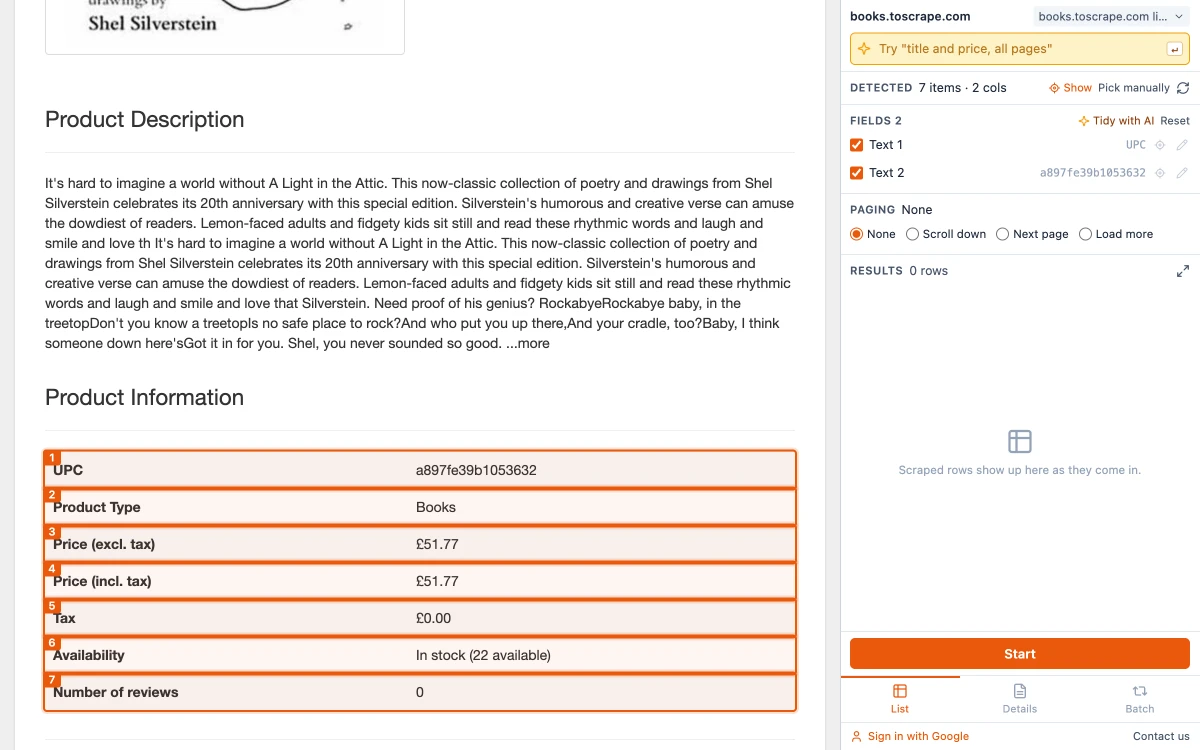
The panel looks for content that repeats with the same structure. On a product page of the practice site it finds the "Product Information" table: "Detected 7 items · 2 cols", one field for the label column and one for the value column, each with a sample value.
Step 3: Keep only the columns you want
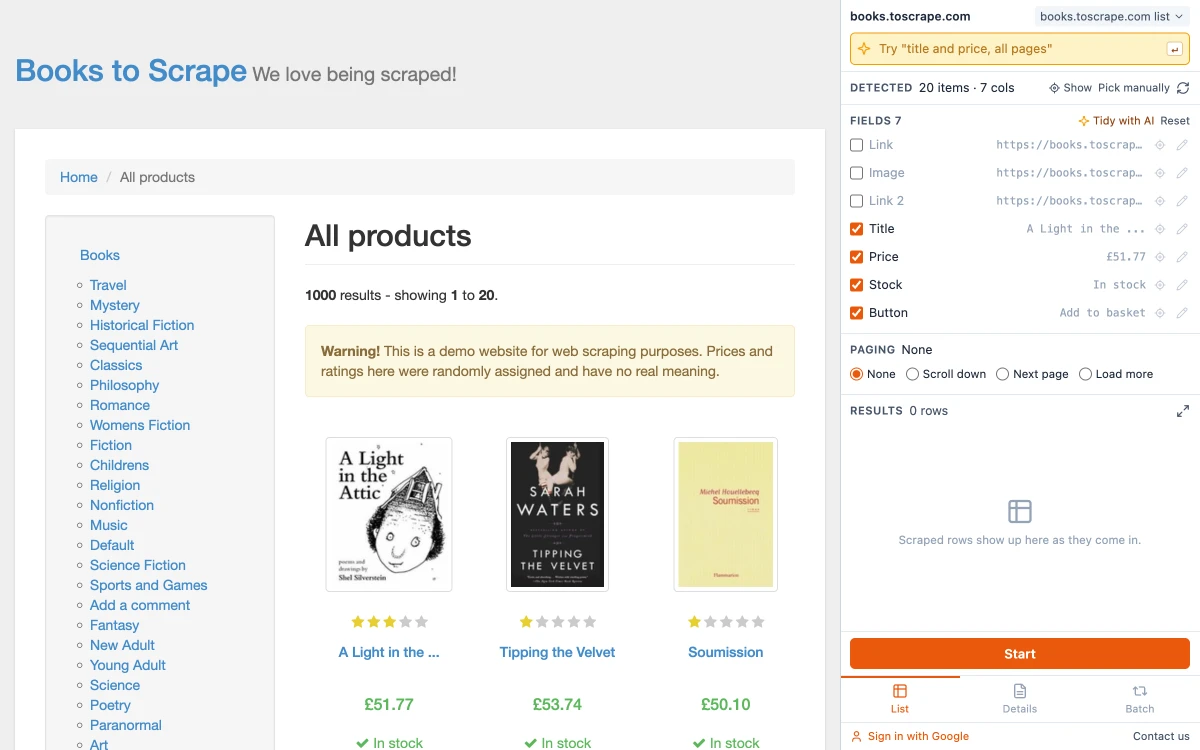
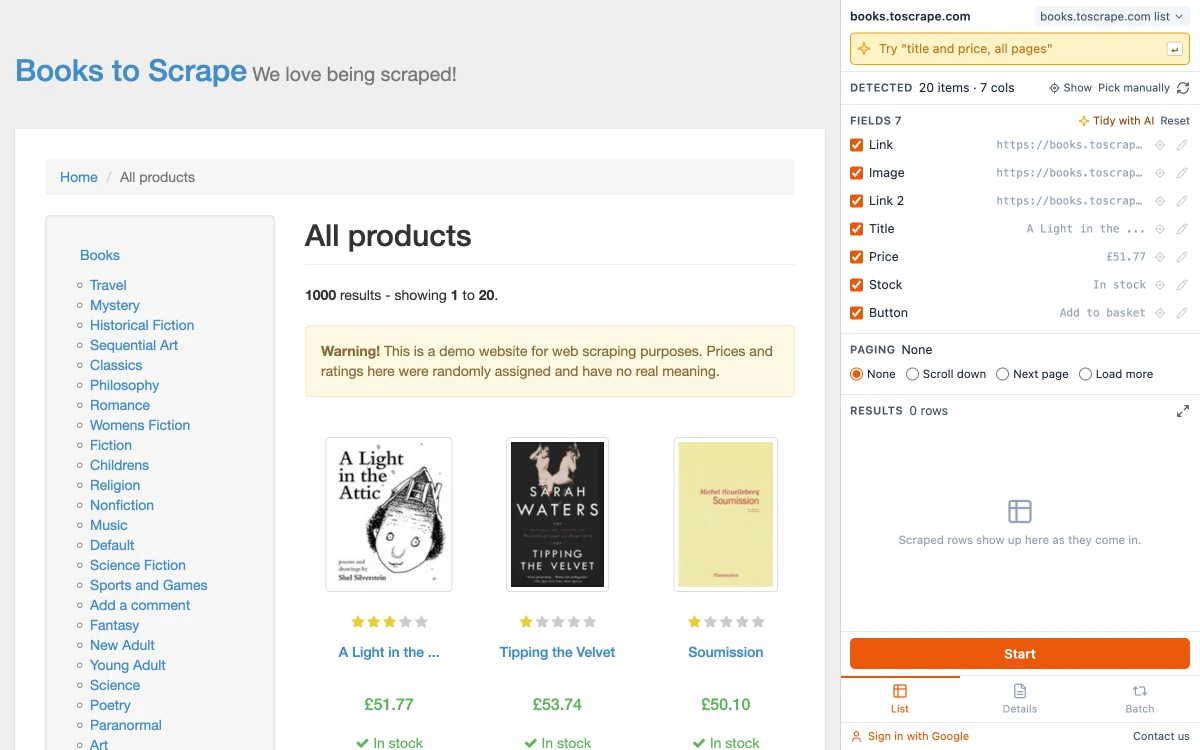
Untick any field to leave it out; only ticked fields are collected. Reset brings them all back. The screenshot shows the same panel on a card list, with three of seven columns unticked.
Step 4: Point at the list if it wasn't found
If you see "Couldn't find a list automatically", click "Point at one list item" and then click anywhere inside one row or card on the page. Every item like it is outlined and counted; press "Use this list" if that is the right one. If it found a list but not the one you wanted, use "Pick manually" and click an item in the right one.
Step 5: Press Start and take the result
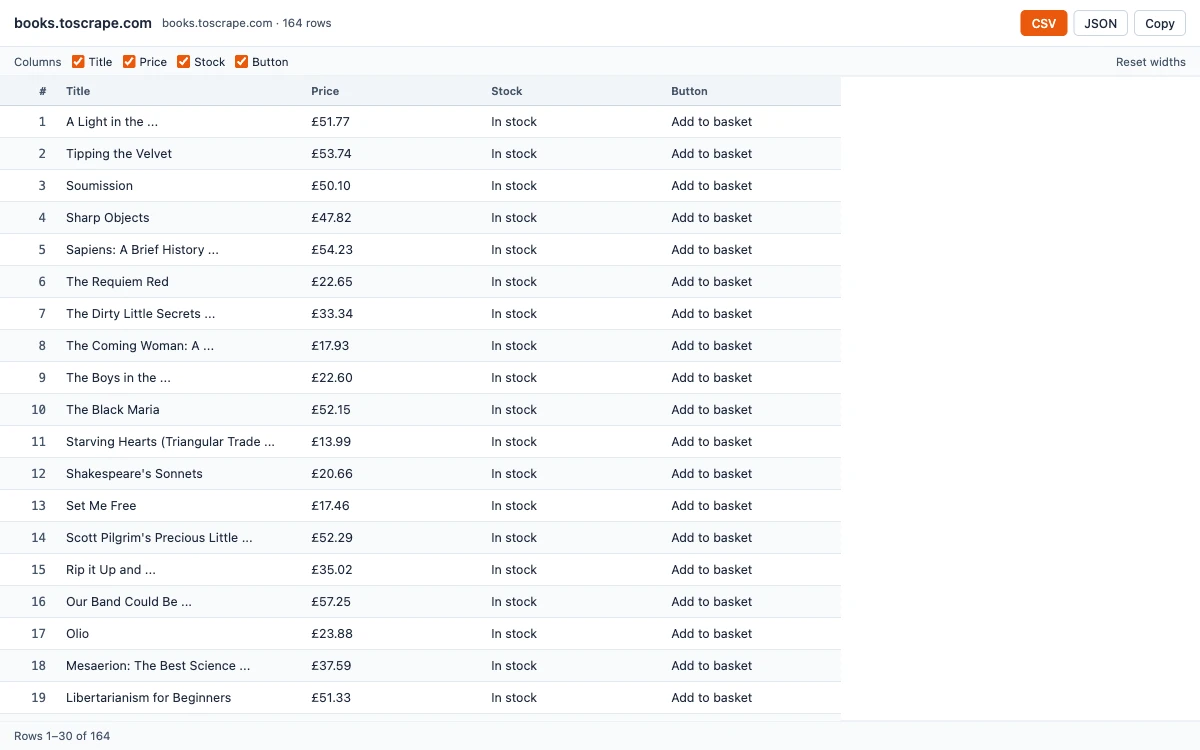
Press Start. Then click "Open results window" and choose Copy to paste into a spreadsheet, CSV for Excel, or JSON for a script.
Real tables and card lists
A real HTML table has rows and cells in the page's code. A card list — products, search results, profiles — only looks like one. Tools that read tables miss card lists. A scraper that looks for repeated structure handles both, because it doesn't care which tag was used.
Other ways to copy a table
| Way | Good for | Limits |
|---|---|---|
| Select, copy, paste | A small real table | Formatting, links and merged cells come along; no card lists |
| Excel From Web | A real table on a public page, refreshed later | No login, no scrolling, one address at a time |
| Google Sheets IMPORTHTML | A real table or list on a public page, refreshed hourly | No login, no content loaded by scripts |
| Browser scraper extension | Real tables and card lists, on pages you are logged in to | Needs the page open in your browser |
The spreadsheet routes are described step by step in the Excel guide and the Google Sheets guide.
When a page has more than one list
Pages often have a main list plus a sidebar, a menu and a footer that also repeat. The list that is biggest and most visible is chosen. If that isn't the one you want, use "Pick manually" and click an item in the right list.
When the table continues on other pages
If the table has page numbers or a Load more button, set Paging before you press Start. The guide on how to scrape multiple pages explains each option.
Getting a clean result
- Scroll the table into view before opening the panel if the page loads it late.
- Check the sample values next to each field: an empty sample usually means that column is empty for the first row, not for all of them.
- Columns it could not name are called Text 1, Text 2 and so on. Rename them with the pencil in the panel, or in your spreadsheet.
Common questions
Use a browser extension that detects repeated rows. Open the page, start the extension, check the columns and export.
Related guides
How to Extract Data from a Website to Excel
Three ways to turn a list or table on any website into an Excel file, shown on a real example with the exported data.
Read guideHow to Scrape Multiple Pages Without Code
Follow Next page buttons, Load more buttons and infinite scroll automatically, and collect every item into one table.
Read guideWeb Scraping with Google Sheets: 3 Ways to Get Website Data into a Sheet
IMPORTHTML, IMPORTXML or a browser scraper: what each can read, where each stops, and formulas you can copy.
Read guide