
How to Scrape a List of URLs
Easy Scraper AI7 min read
Short answer
To scrape a list of URLs without code, first collect the links — from a list page or a CSV file. Then open one of the pages, click the fields you want so they are saved as a template, and run the whole list. Easy Scraper AI opens each URL in turn and writes one row per page.
On this page
A list page rarely tells the whole story. A product grid shows a shortened title and a price; the description, stock count and specifications sit on each product's own page. Getting those means opening every page and reading the same few fields.
This guide does that in two passes on Books to Scrape: one to collect the links, one to visit them. On the list page the first book is shown as "A Light in the ..."; by the end you will have its full title from its own page.
What you need
- Google Chrome on a computer (version 114 or later)
- The Easy Scraper AI extension
- Either a list page that links to the pages you want, or a CSV file with the URLs in one column
Steps
Step 1: Scrape the list and keep the link column
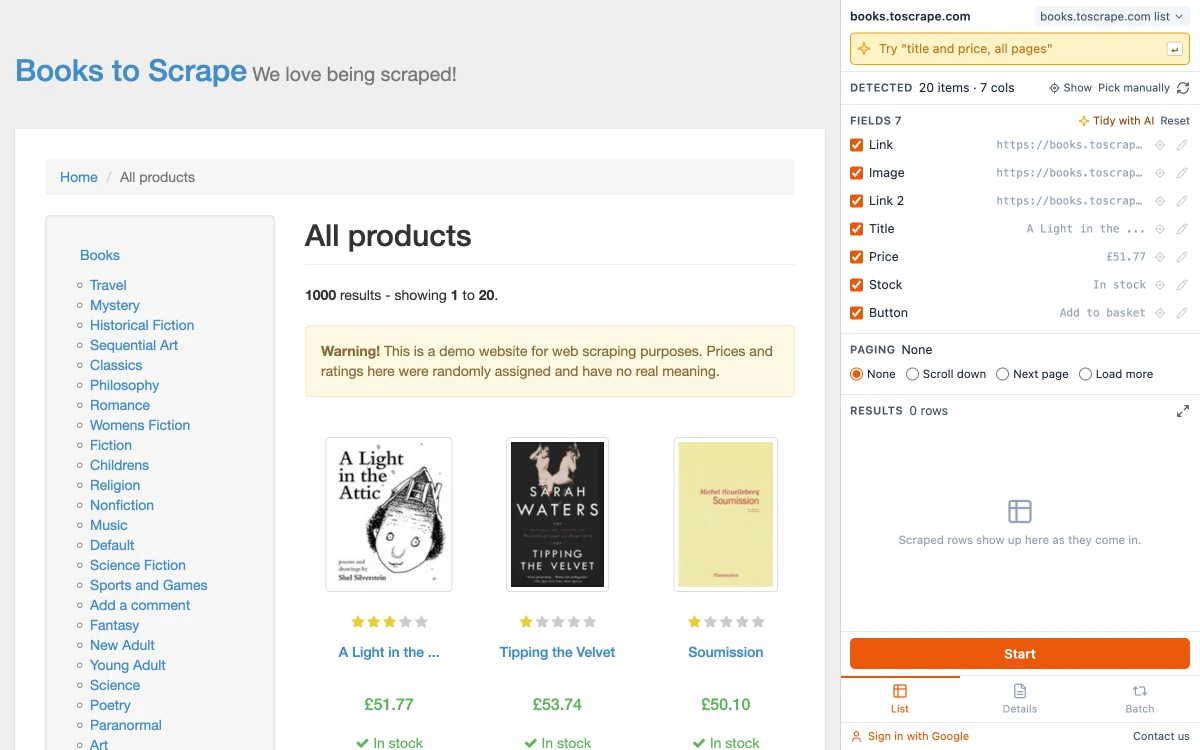
Open the list page, open the side panel and check the detected fields. At least one of them holds the link to each item — on the practice site there are two, "Link" and "Link 2", and both lead to the book's own page. Keep one of them ticked, then press Start. Only ticked fields are collected, so a link column you untick here will not be available later.
Step 2: Open one detail page and switch to Details
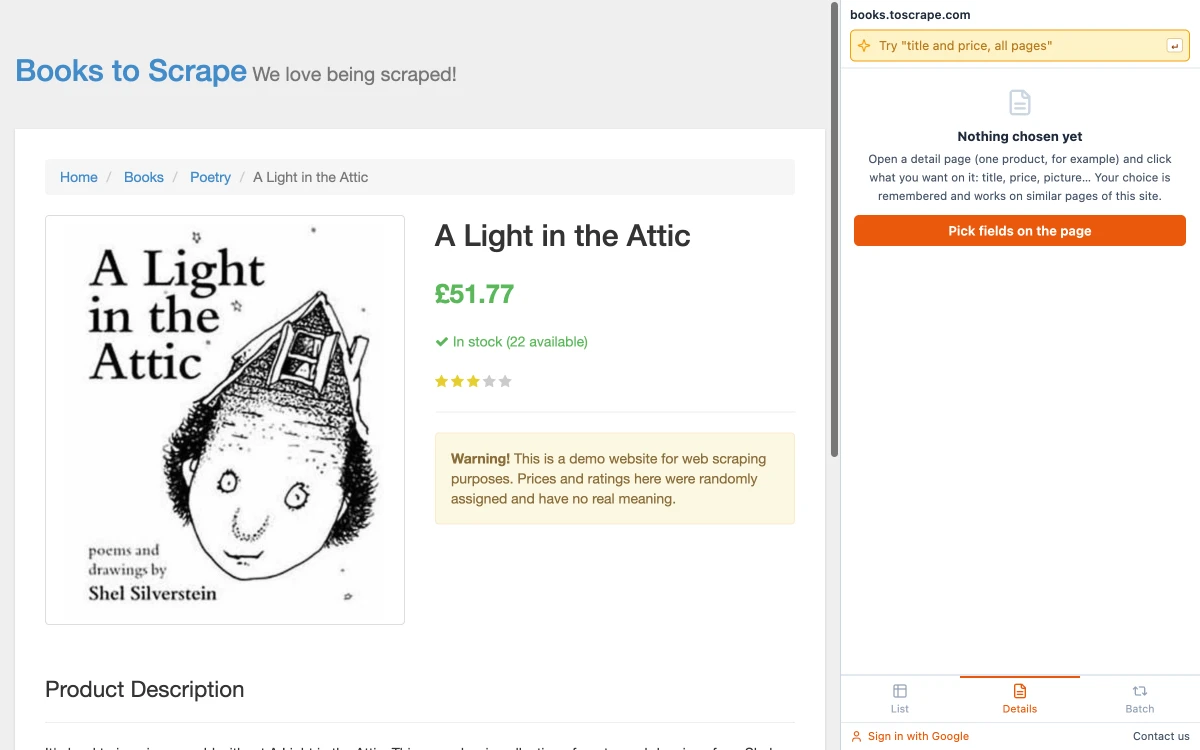
Click through to any one of the items and choose Details at the bottom of the panel. The first time on a site it says "Nothing chosen yet".
Step 3: Click the fields you want
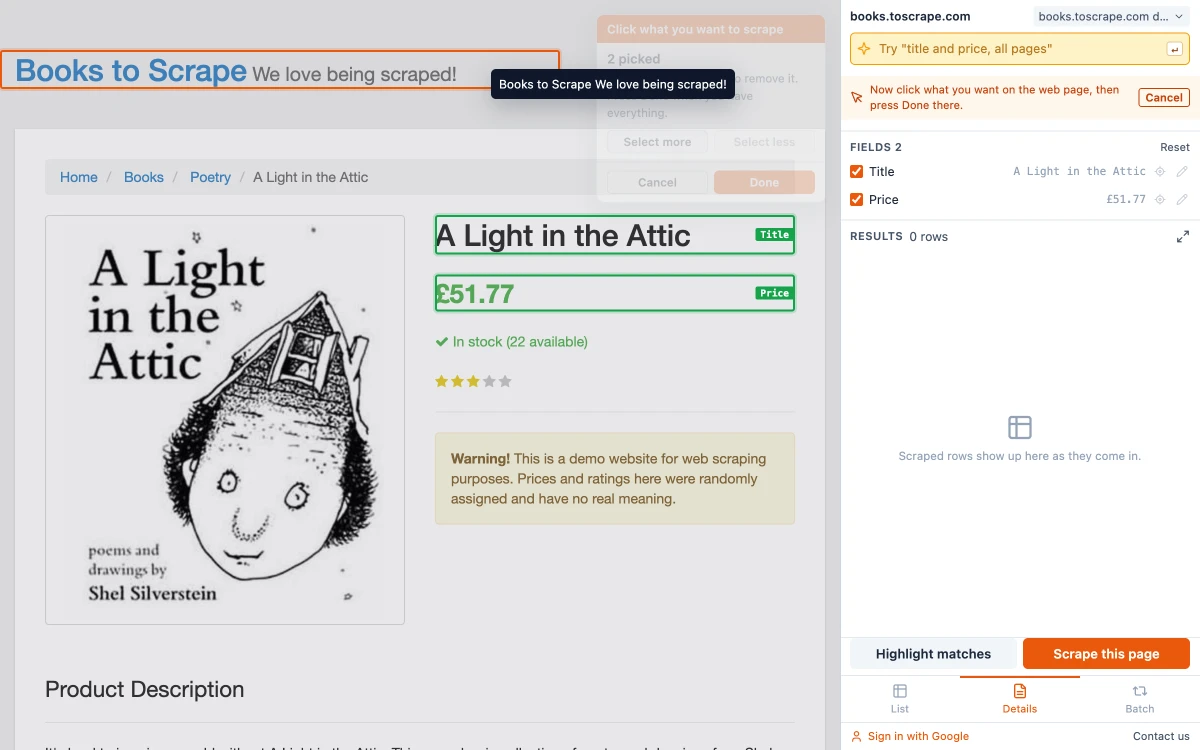
Click "Pick fields on the page", then click each value on the page: here the title and the price. Picked fields get a green outline with a name (Title, Price) and the small box on the page counts them: "2 picked". If an outline is not quite right, "Select more" and "Select less" in that box grow or shrink it. Click something again to remove it, and click Done when you have them all.
Step 4: Check the saved fields
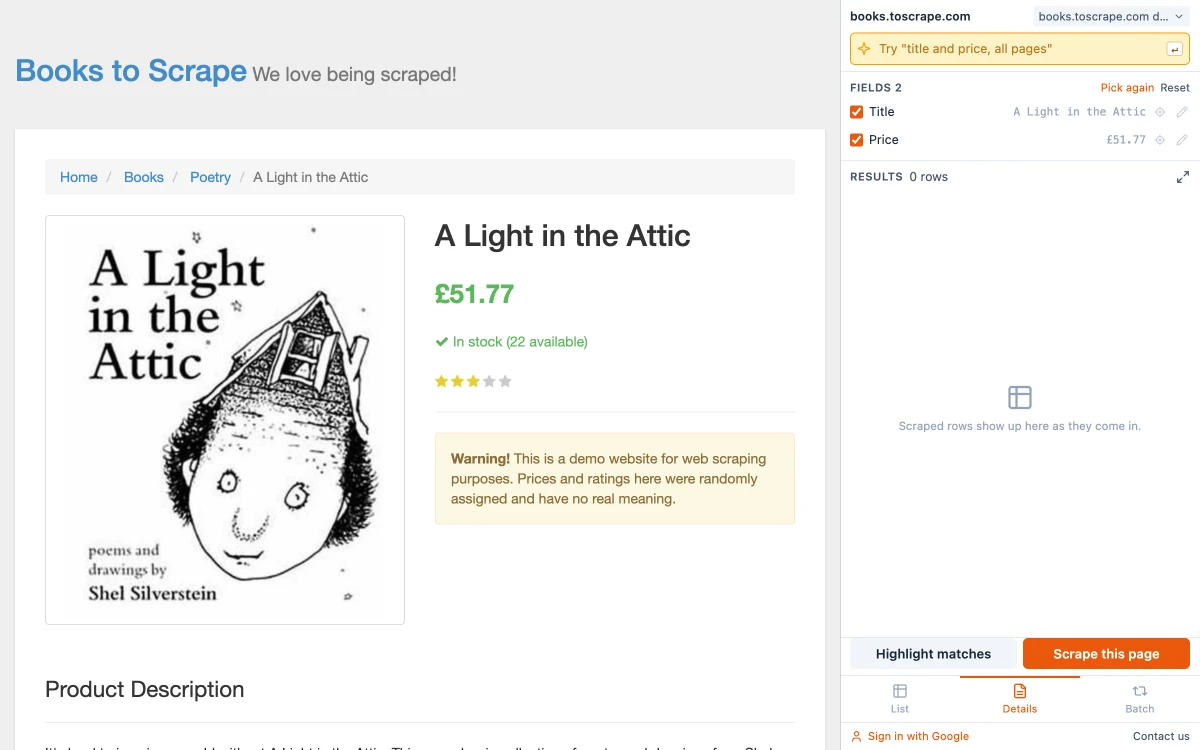
The panel now lists the fields with the values it read from this page. They are saved as a template for the site, so you only do this once. "Highlight matches" shows on the page what each field points at, and "Pick again" lets you add or remove fields later.
Step 5: Switch to Batch and choose the URLs
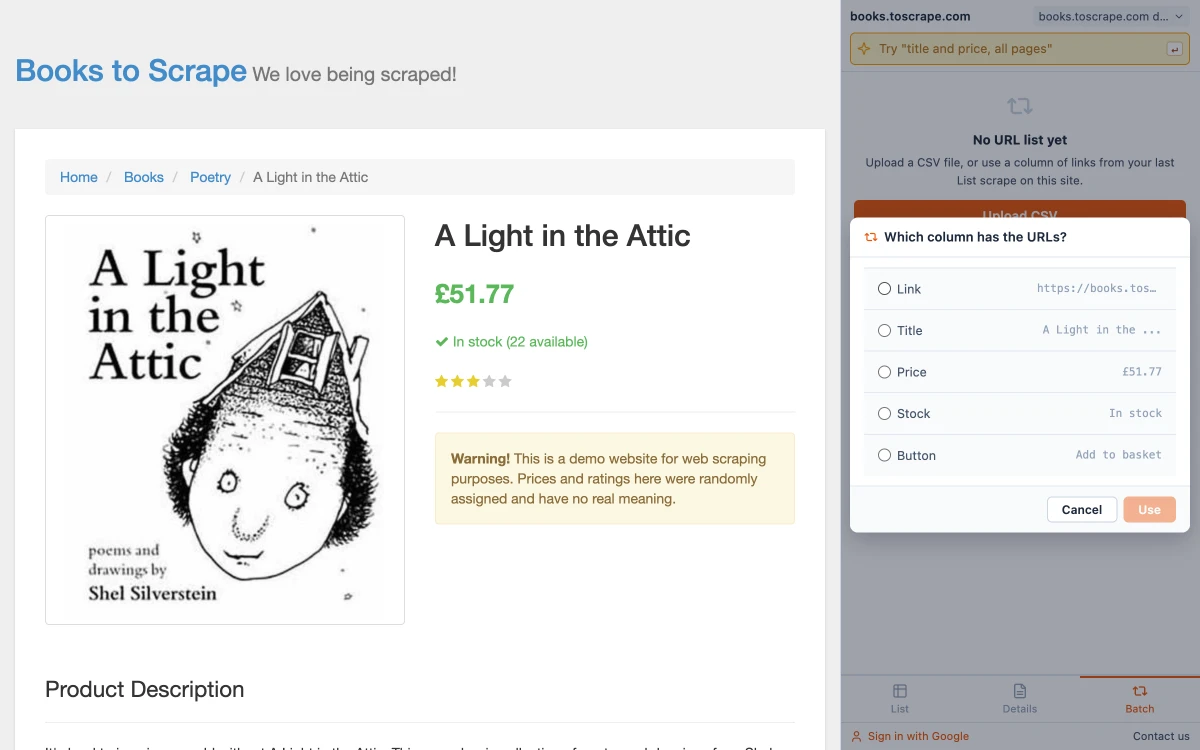
Choose Batch. With no list yet it offers two sources: "Upload CSV", or "Use links from the last scrape". Pick the second, select the link column and click Use.
Step 6: Press Start
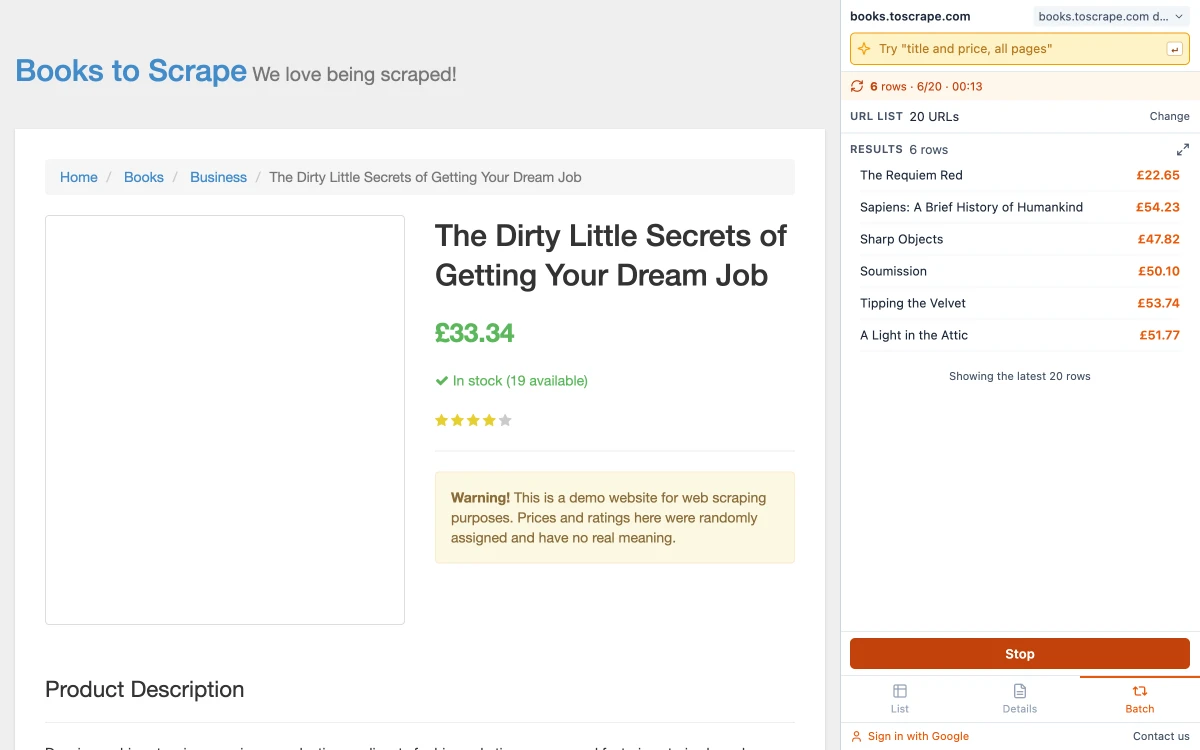
The panel shows how many URLs are queued — "URL list 20 URLs" — and Start runs them. Each page is opened in the same tab in turn and the fields are read from it. The counter shows progress, for example "6 rows · 6/20 · 00:13".
Step 7: Export the table
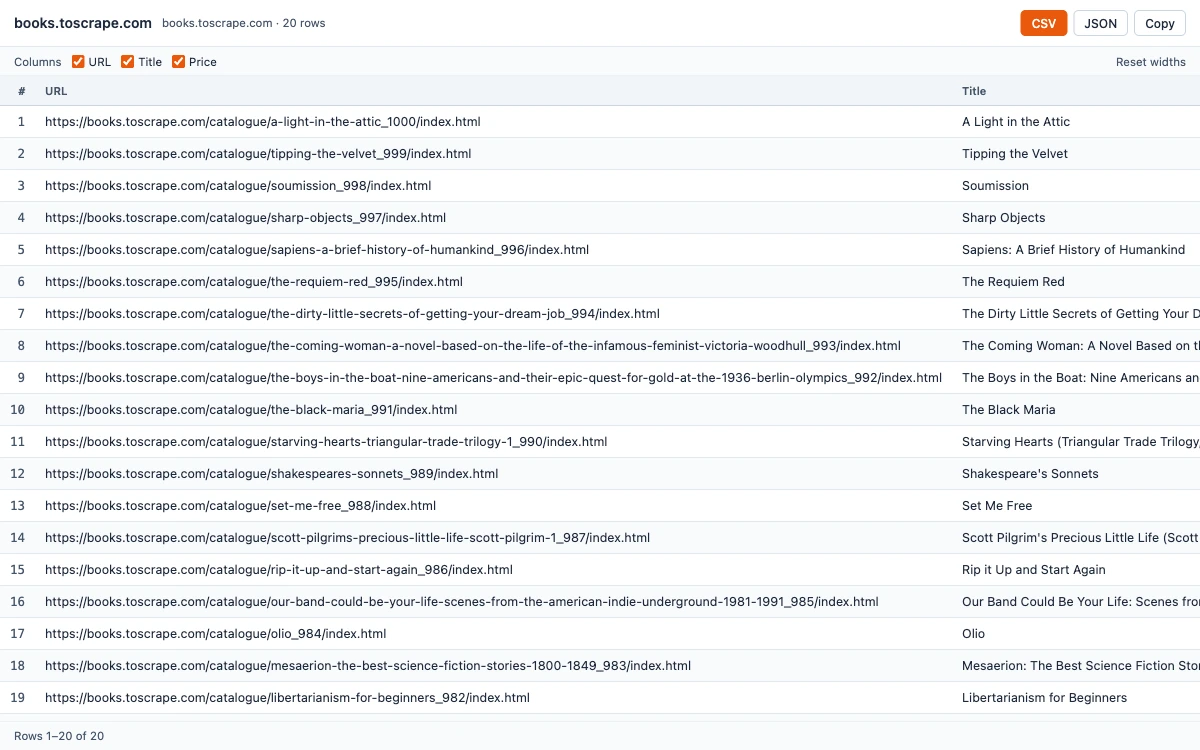
When it finishes, click "Open results window" and export as CSV or JSON, or copy the table. Each row starts with the URL it came from.
What the result looks like
These are the first rows of the CSV from the run above. The URL column is added for you; the other two are the fields that were clicked.
| URL | Title | Price |
|---|---|---|
| https://books.toscrape.com/catalogue/a-light-in-the-attic_1000/index.html | A Light in the Attic | £51.77 |
| https://books.toscrape.com/catalogue/tipping-the-velvet_999/index.html | Tipping the Velvet | £53.74 |
| https://books.toscrape.com/catalogue/soumission_998/index.html | Soumission | £50.10 |
The title is now complete — "A Light in the Attic" instead of the shortened version from the list. The columns are named after what you clicked (Title, Price), and the first column records which page each row came from.
Starting from a CSV file instead
If you already have the addresses — from a spreadsheet, a sitemap or an earlier export — choose "Upload CSV" in Batch mode. The first row of the file must be column names; you are then asked which column has the URLs.
All pages need the same layout
The template is a set of positions on a page. It works when every URL in the list uses the same layout, as product pages on one site do. If a field comes back empty for some rows, open one of those pages: the value is usually missing there, or that page is built differently. A list that mixes two kinds of pages is best split into two runs.
Long lists
A run is saved as it goes. If you stop it, or close the panel, the next time you open the panel on that site it asks "Resume the last run?" and continues with the remaining URLs. Keep the tab visible while it works, and remember that a thousand URLs is a thousand page loads for the site — and that not every site allows it. See whether web scraping is legal for what to check first.
Collecting the links across many list pages
If the list itself runs over several pages, set Paging in the first pass so that every link is collected before you start the batch. The guide on how to scrape multiple pages covers the options.
Common questions
Give the tool the URLs, show it once which fields to read on one of the pages, and let it open each URL and repeat. In Easy Scraper AI that is Details mode for the fields and Batch mode for the run.
Related guides
How to Scrape Multiple Pages Without Code
Follow Next page buttons, Load more buttons and infinite scroll automatically, and collect every item into one table.
Read guideHow to Extract Data from a Website to Excel
Three ways to turn a list or table on any website into an Excel file, shown on a real example with the exported data.
Read guidePrice Scraping: How to Collect Prices from a Website into a Spreadsheet
Collect product names and prices from a site without code, then compare two snapshots to see what changed.
Read guide